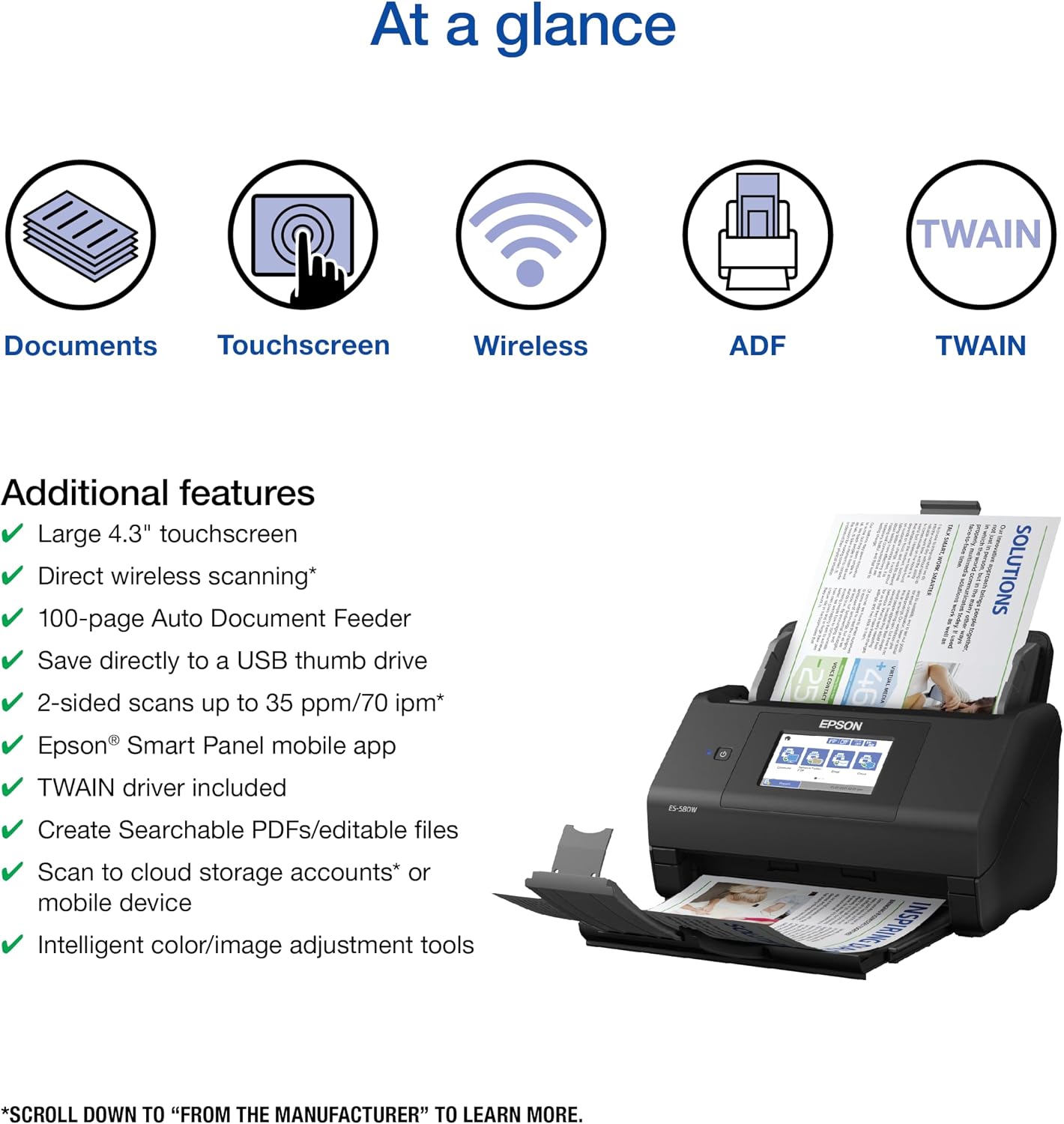
You’ve decided a shared wireless document scanner makes sense for your workgroup — maybe you’re consolidating three USB-connected desktop units into one centrally placed device, or you’re equipping a satellite office where running a USB cable to every workstation isn’t practical. A document scanner is a device that automatically feeds stacks of paper through an optical sensor, digitizes them, and delivers image files to a computer or network folder. The ADF part — Automatic Document Feeder — means it handles multi-page batches without manual page-by-page feeding. Add Wi-Fi, and in theory anyone on the same network can scan from their desk. In practice, “in theory” is doing a lot of heavy lifting in that sentence. This article walks through the deployment decisions that determine whether your shared scanner becomes a workgroup asset or a support ticket generator: network authentication, driver architecture, scan-destination routing, and the software compatibility layer that ties it all together.
| EDITOR'S PICK[Epson Workforce ES-580W Wireles…](https://www.amazon.com/dp/B08P3ZT5WH?tag=greenflower20-20) | Mid-tier[Epson Workforce ES-500W II Wire…](https://www.amazon.com/dp/B0GN5RH1MY?tag=greenflower20-20) | Budget pick[Brother DS-940DW Duplex and Wir…](https://www.amazon.com/dp/B083R3XYQN?tag=greenflower20-20) | |
|---|---|---|---|
| ADF Capacity | 100 sheets | — | — |
| Display | 4.3 in touchscreen | — | — |
| Form Factor | Desktop | Desktop | Mobile |
| Price | $449.99 | $388.00 | $229.99 |
| See on Amazon → | See on Amazon → | See on Amazon → |
Why Wireless ADF Scanners Break in Shared Environments (and How to Prevent It)
Most wireless scanner problems in workgroups aren’t hardware failures — they’re configuration failures that surface only after the device is already installed. Understanding the three common failure modes up front will shape every decision below.
Failure mode 1: IP address drift. Wireless devices that receive their network address dynamically (via DHCP, the protocol your router uses to assign addresses automatically) can get a new address after a power cycle. When that happens, any workstation that had bookmarked the scanner’s old address — or any scan-to-folder job that referenced it — stops working silently. The fix is trivially easy: assign the scanner a static IP address (a permanent, manually assigned address that never changes) either through the scanner’s own admin panel or by reserving the address at your router. The Kodak Alaris S2000 series networking guide makes this the first step in its enterprise deployment checklist, and for good reason.
Failure mode 2: Driver fragmentation across OS versions. In a workgroup of five people, you may have a mix of Windows 10, Windows 11, and one Mac running macOS Sequoia. Each OS expects its own driver — the software that lets the operating system communicate with the scanner hardware. If the manufacturer hasn’t released a current driver for one of those platforms, that workstation effectively can’t use the scanner. Always check the manufacturer’s driver download page before purchase and confirm builds exist for every OS version currently deployed in your environment.
Failure mode 3: Scan-destination authentication expiry. When users set up “scan to email” or “scan to network folder,” those destinations are typically authenticated once during setup. When a user’s network password rotates (as it does under most IT security policies), the scanner’s stored credentials silently expire. The workgroup then perceives the scanner as broken when it’s actually just locked out of the destination. Mitigation: use a service account — a dedicated login that doesn’t belong to any individual user and whose password rotation you control — for all scanner-to-destination authentication.
Matching the Hardware to Workgroup Scale
The right scanner depends heavily on daily page volume and the number of concurrent users. Here’s a practical tier breakdown based on published specifications and aggregated operator reviews:
By the numbers — workgroup scanner tiers (2026 pricing):
| Tier | Representative Model | Duty Cycle (mfr-rated) | Wi-Fi Protocol | Street Price |
|---|---|---|---|---|
| Small workgroup (2–5 users) | Fujitsu ScanSnap iX1300 | 500 pages/day | 802.11 a/b/g/n/ac | ~$400 |
| Mid workgroup (5–15 users) | Epson WorkForce ES-400 II | 4,000 pages/day | 802.11 b/g/n | ~$300 |
| Departmental (15–30 users) | Brother ADS-4700W | 5,000 pages/day | 802.11 a/b/g/n/ac | ~$650 |
| Production-adjacent | Kodak Alaris S2060w | 10,000 pages/day | 802.11 a/b/g/n/ac | ~$1,600 |
The duty cycle figure is the manufacturer’s rated maximum daily page volume — think of it as the design load, not a ceiling you should routinely hit. Operators in long-run reviews consistently recommend targeting no more than 60–70% of the rated duty cycle to stay ahead of roller wear and paper-path jams.
One notable spec asymmetry worth flagging: the Epson WorkForce ES-400 II’s 802.11 b/g/n support tops out at the 2.4 GHz band only, per Epson America’s published specification sheet. In dense office environments — where the 2.4 GHz band is congested with printers, IoT devices, and legacy hardware — this can translate to slower throughput and occasional connection drops. The Brother ADS-4700W and Fujitsu ScanSnap iX1300’s dual-band ac support (both 2.4 GHz and 5 GHz) gives those units meaningfully more headroom on congested networks.
Driver Architecture: TWAIN, WIA, and ISIS — What Actually Matters for Workgroup Deployment
This is where many buyers underestimate complexity. Scanners communicate with computers through standardized driver interfaces; choosing the wrong one for your software environment creates friction that compounds with every user added.
TWAIN (the name is an industry acronym, not a descriptive term) is the most widely supported interface and the baseline for almost all general-purpose document management software — including Microsoft SharePoint integrations, most PDF editors, and standalone capture applications. The TWAIN Working Group’s TWAIN Direct Specification, now at version 2.2, introduced a network-native scanning protocol that allows a TWAIN Direct-capable scanner to accept scan jobs over the network without a locally installed driver on each workstation. This matters enormously in workgroups: instead of pushing driver packages to fifteen computers, you configure the scanner once on the network and any TWAIN Direct-compatible application finds it automatically. Fujitsu’s ScanSnap iX1600 (the larger sibling to the iX1300) supports TWAIN Direct, a detail PCMag’s review of that model specifically calls out as a differentiator for multi-user deployments.
WIA (Windows Image Acquisition) is Microsoft’s native scanner interface, built into Windows. It’s convenient for ad-hoc scans directly from Windows Explorer or basic applications, but it lacks the advanced profile management and batch-processing controls that document-heavy workgroups typically need. Treat WIA as a fallback, not a primary driver strategy.
ISIS (Image and Scanner Interface Specification) is the driver standard favored by enterprise capture software — Kofax Capture, OpenText Documentum, and similar platforms. If your workgroup feeds scanned documents into a production document management system, confirm that your scanner carries ISIS certification before finalizing the purchase order. Not all mid-range wireless ADF scanners do. The Kodak Alaris S2000 series explicitly carries ISIS certification; the Fujitsu ScanSnap line historically does not (ScanSnap devices use Fujitsu’s proprietary ScanSnap software stack, which is polished for end-user simplicity but not designed for ISIS-based enterprise workflows).
Practical decision rule: If your downstream software is a consumer-grade or SMB solution (Adobe Acrobat, DocuWare Cloud, Microsoft 365), TWAIN or TWAIN Direct is sufficient. If you’re routing scans into Kofax, Laserfiche, or a hospital EMR system, filter your shortlist to ISIS-certified hardware before evaluating anything else.
Network Authentication: WPA3, 802.1X, and the Enterprise Wi-Fi Problem
Most offices have migrated — or are migrating — to WPA3 (Wi-Fi Protected Access 3), the current security standard for wireless networks. The complication: as of mid-2026, several popular mid-range ADF scanners still only support WPA2. Connecting a WPA2-only device to a WPA3-only network requires either enabling “WPA3 Transition Mode” on your access point (which weakens the network’s overall security posture slightly) or putting the scanner on a segregated VLAN (a logically separate network segment) with WPA2 policies. Both options are workable; neither is invisible to your IT team.
The more significant authentication challenge arises in organizations using 802.1X — the enterprise authentication protocol that requires every network device to present valid credentials to a RADIUS server before getting network access. This is common in healthcare, finance, and government environments. Wireless scanners that support 802.1X enrollment are meaningfully easier to deploy in these environments; those that don’t require workarounds (certificate exemptions, MAC address bypass lists) that IT teams often resist. The Brother ADS-4700W’s support documentation explicitly covers 802.1X EAP-TLS configuration, making it one of the more enterprise-ready options at its price point. Verify 802.1X support in the scanner’s admin guide — not the marketing sheet — because 802.1X compatibility is frequently omitted from feature bullet points while appearing quietly in the technical documentation.
Scan Destinations, Output Formats, and Folder Permissions
The final layer of workgroup deployment is routing: where do scanned files actually go, and in what format?
Most Wi-Fi ADF scanners support at least three destination types: scan-to-folder (depositing files to a shared network directory), scan-to-email (sending files via SMTP), and scan-to-cloud (routing to services like SharePoint, Google Drive, or Dropbox). Each destination type has its own authentication dependency — network credentials for folder destinations, SMTP credentials for email, OAuth tokens for cloud services. OAuth tokens for cloud destinations typically have expiry intervals; build a calendar reminder to re-authenticate these connections before they lapse silently.
Output format matters more than buyers often expect. Searchable PDF — a PDF that contains both the scanned image and a hidden text layer generated by OCR (Optical Character Recognition, the process of converting a scanned image of text into actual selectable text) — is the standard requirement for compliance-adjacent workflows. Confirm that searchable PDF output is available at the scanner level, not only through add-on software. Some scanners (particularly the Fujitsu ScanSnap line) bundle capable OCR software that handles this at the workstation; others require the workgroup to maintain a separate OCR license.
If X, then Y — the decision rules:
-
If your workgroup has 2–6 users, a general-purpose software stack, and no 802.1X requirement: the Fujitsu ScanSnap iX1300 at ~$400 or the Epson WorkForce ES-400 II at ~$300 covers the load. The Fujitsu’s TWAIN Direct support gives it more multi-user flexibility; the Epson’s higher duty cycle (4,000 vs. 500 pages/day) is the decisive factor if your daily volume is high.
-
If your workgroup has 10–20 users, you’re on a 5 GHz enterprise Wi-Fi network, and you need 802.1X support: move up to the Brother ADS-4700W (~$650). The dual-band Wi-Fi and documented 802.1X compatibility justify the price jump.
-
If you’re routing into Kofax, Laserfiche, or a similar ISIS-dependent platform: filter to ISIS-certified models first. The Kodak Alaris S2060w (~$1,600) is the production-grade option here; its networking guide covers enterprise deployment in depth, and operators in long-run reviews consistently cite its reliability under sustained loads as the primary justification for the price premium.
-
If your IT policy prohibits DHCP for networked peripherals: any of the above models support static IP assignment — but confirm the configuration path in the admin guide before deployment, because the interface varies considerably across manufacturers.
The hardware decision is often the straightforward part. The network configuration, driver architecture, and destination authentication are where shared wireless scanners quietly succeed or quietly fail. Getting those three layers right before the device ships will save your workgroup from the kind of intermittent, hard-to-reproduce problems that consume disproportionate IT time and undermine confidence in the whole deployment.